 Sales Tax Summary Report
| Document Version | v.2 |
|---|---|
| Document Last Updated | 11/13/2023 |
| Software Version Documented | v.9.9.2 |
Task/Problem Overview
This article will cover how to run and understand the details listed on your Sales Tax Summary report within the reporting engine.
How to Run a Sales Tax Summary Report
To run your Sales Tax reports go to Reports > Reporting Engine from your navigation.

-
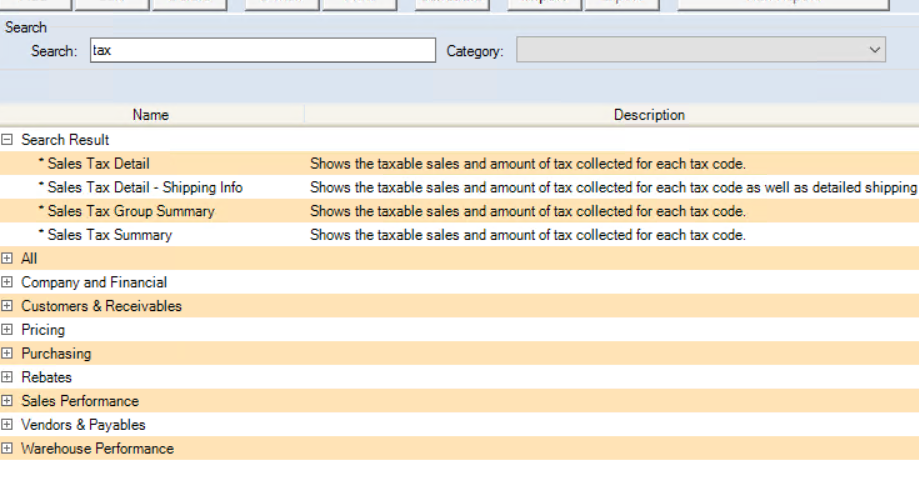
Using the search bar enter ‘Tax’ and hit enter
-
All the tax reports will appear, alternatively, you can use the +/- to expand all menus to view all the reports offered.
-
Highlight the Sales Tax Summary report and right-click to select ‘Preview Report’
-
Select your filters for your Tax Code, Date Range, and Warehouse location and select ‘Preview’

-
Your report will load onto your screen to be viewed, printed, email, etc.
Understanding your Sales Tax Summary Report
Depending on your business you’ll typically need to run some sort of Sales Tax report monthly to see how much tax was collected, and forgiven. In this next section, we’ll cover how to read and understand the values reported on your Sales Tax Summary Report
Report columns
The Sales Tax Summary report provides the following information in the following columns.
-
Tax Code - These are your individual tax codes (not tax groups) listed within your Administrator settings.
-
Description - This is the description of your tax code.
-
Sales - The total dollar amount of sales for that time period for each tax code listed.
-
Taxable Sales Excluding Taxes - The total dollar amount for all items that were marked ‘Taxable’ at the line item detail in a sales order for each tax code listed.
-
Tax Forgiven - The total dollar amount of tax that was marked ‘Forgiven’ in the receive money screen.
-
Tax Collected - The total dollar amount of the tax collected from the Taxable Sales Excluding Taxes using the individual tax code and the configured percentage value.
Report Values
In the scenario that you have tax groups created that combine more than one Tax Code, i.e. a County Tax and State Tax. Both your Sales and Taxable Sales Excluding Taxes column totals will reflect the same sale. See the example below:

A $1000 order was placed that had both the Ohio State and Shelby County tax codes assigned to it. Out of that $1000 sale, only $750.45 worth of material was marked ‘Taxable’ at the line level. The total tax collected reflects the Taxable Sales Excluding Taxes and the tax percentage configuration for each code. .e. 5.75% State, and 1.5% County.
Report Totals
At the bottom of the report, there are four Report Totals listed.
-
Sales - This value is just a total of all of the sales numbers listed in that column and is NOT a true sales total due to the same order values can be recorded in multiple spots (see example above.)
-
Taxable Sales Excluding Taxes - This value is just a total of all of the Taxable Sales numbers listed in that column and is NOT a true total due to the same order values can be recorded in multiple spots (see example above.)
-
Tax Forgiven - The total dollar amount of all Tax Forgiven
-
Tax Collected - the total dollar amount of all Tax Collected.
Both the Tax Forgiven and Tax Collected totals are what you need to settle with your tax authority.
